In this tutorial, I will show you how to create a realistic embroidery text effect in Photoshop using stitch brushes and layer styles. The end result will be a font that looks like embroidery!
This is part of my embroidery effect Photoshop action, which is part of the Embroidery and Stitching Photoshop Creation Kit from my portfolio on Envato Market.
1. Create the Jeans Background
Step 1
Create a new 1100 x 600 px document, and create a new layer called Jeans Background. Copy and Paste the Jeans Texture on this layer. Make sure you use the large texture (2000 x 1500 px).
In this tutorial we will show you a simple effect to pencil a picture
or any sort of piece you’d like. It might even make working on that
special piece a lot easier! Here is the final result:
In this tutorial, we will be creating a very sleek, smooth button
that looks ideal and will beautify your webpage, unlike your average,
conventional shiny web button. Here is the final result:
First, open a new document. Any size will do.
Make a new layer.
Take out your rectangular marquee tool, and put it to Fixed Size, with these settings.
Place the marquee anywhere you want on your canvas, and fill it with a color of your choice.
Start by creating a new document about 200x350. Open the Channels Palette, and click on the Create new channel icon. Press D on your keyboard to reset your colors to default. Use the Rounded Rectangle tool with Fill Pixels mode
selected in the Options bar, and draw a round-edged box.
Firstly, you are going to need an interface or panel that you want to
add your buttons to. You can use any interface image you already have
handy, or you can make a new one similar to the the example by following
the steps in the smooth metal tutorial.
Here is an example of what an inset is:
With this nice & easy Photoshop
tutorial you can learn how to design some glossy, professional-style
buttons. Professionals that make website templates for a living can use
this sort of effect efficiently and make plenty of money!
Using Illustrator’s pencil tool and shapes of solid color, you can
imitate the graphic novel styling of A Scanner Darkly. An animator from
the film shows us how.
Director Richard Linklater’s A Scanner Darkly impressed audiences
this summer with a stunning 2D animation style that mixes heavy blacks
lines with shapes of solid color to represent a realistic image. After
filming the movie live action, we used proprietary vector software to
animate directly over live footage, preserving the likeness and
performances of the actors – a process called “Interpolated
Rotoscoping.” This tutorial will show you how I was able to recreate a
similar effect using tools in Adobe llustrator. Using Illustrator’s
pencil tool and shapes of solid color, you can imitate the graphic novel
styling of A Scanner Darkly.
1
Select an interesting image for photo reference – the bigger the
dimensions of the image the better. Go to File>Place to insert it
into your Illustrator file.
Create a new file (File>New) of 1280×1024 px and 72 dpi.
Paint the first layer with black color, applying the Paint Bucket Tool (G).
Let’s start making a very gloomy texture. Download out of Internet a set of ready to use brushes D_Grungeset1.
In this case we’ll use all the brushes, except the marked one in the table below. The color’s code is #532100. Brush’s Opacity needs to be on 20%.
We must get almost the same thing as on the picture below:
Choose now a brush as in the next table. We’ll use it during the entire lesson.
On a new layer we’ll try to represent the blue color – #04020F. Opacity:20%.
Enlarge the brush’s size by pressing Ctrl +] and try to represent one more layer of the same color.
On the next layer the brush needs to be enlarged even more, changing the Opacity on 40% and trying to get the same result as below:
Select the white color, Opacity of 10% and represent an element remembering the clouds.
Set the next parameters on the layers’ palette.
Select the black color and the same opacity’s value to create a dark haziness on the top part of the picture.
Create a new file of 500x500px and 72 dpi, painting it in black color.
Select the Gradient Tool (G) on a new layer for giving it the white gradient. Select on the top gradient’s menu the option Foreground to transparent, having a picture, like the next one.
Next select the main menu Filter>Distort>Wave…, setting the options from below
…and then Filter>Distort>Polar Coordinates
We’ll get a fascicle of light like the next one. Select after that the Smudge Tool (R) to spread out the rays from their middle part to outside.
Then place the result that we’ve got on our main picture.
Set the parameters:
Make a copy of this layer Ctrl+J and enlarge the copy up to one third parts, applying Free Transform option(Ctrl+T). Set the layer’s parameters demonstrated below:
We need to get the result from below:
Create a new layer, giving it the Blending Mode from below:
Select the brush with the color’s code #F8F70C and the Opacity of 100% and make several touches on the light’s central part.
Use the brush of black color on the bottom part of a new layer that needs to be made up first of all. The Opacityis of 10%.
Create again a new layer and select the Rectangular Marquee Tool (M) to represent the element from below, painting it with red color (Opacity 30%). The bottom corners should be erased with the Eraser Tool (E).
Paint out now a black stripe, applying the Opacity of 30%.
Create a new layer with the parameters demonstrated below and insert several touches of red color, having theOpacity of 100%.
On a new layer we’ll draw three dots with the usual brush.
Stretch out the made dots with the Free Transform option and erase the extreme lines on both sides, the same way the next picture indicates it. Set for this layer Blending mode-Soft Light.
Make a copy of this layer and grow narrow a little each stripe, marking them with the Rectangular Marquee Tool (M). Set for the new layer the Blending Mode – Overlay till getting the next result.
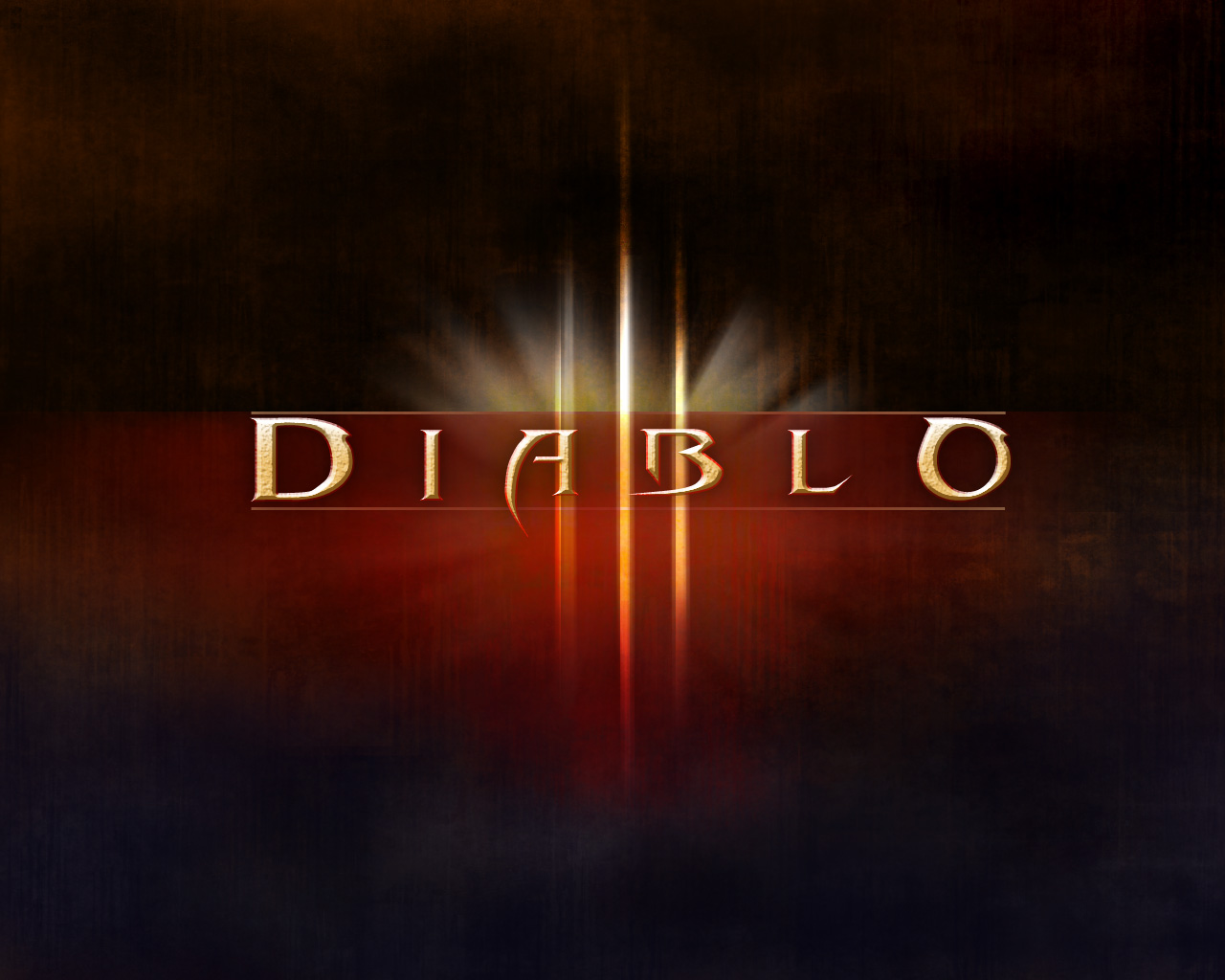
Next we’ll write the next word on the central part of the picture.
Select the next parameters for the text’s layer.
Select also for the new layer Blending Options>Drop Shadow, following all the selections from below. Blending Options>Bevel and Emboss Blending Options>Bevel and Emboss>Contour Blending Options>Bevel and Emboss>Texture Blending Options>Gradient Overlay Gradient Editor Blending Options>Stroke