Showing posts with label 3d metal texture. Show all posts

Create Spectacular Style Text Effect

In this tutorial we’ll create a cool looking 3D Style text effect.Begin your work with creating a new file of 1280×1024 px and 72 dpi.
Then we shall use the Rectangle Tool (U) to draw the background of the picture to be.
Create a Spectacular Style Text Effect in Photoshop CS3
Set the next shown parameters for the made new layer by making a mouse click on this layer in the layers’ palette. Blending Options>Gradient Overlay
Read More

Zoom Enhanced Eyes Effect Photoshop CS6

In this Photoshop tutorial, we’ll learn how to give someone’s eyes an almost otherworldly “radial zoom” effect, with bright, colorful blur streaks that zoom out from the center of the eyes. As we’ll see, the effect is very easy to create using nothing more than a basic selection tool, a couple of Photoshop’s filters, a layer mask, and a layer blend mode!
This version of the tutorial has been updated for Photoshop CS6 and is also fully compatible with Photoshop CC (Creative Cloud). For CS5 and earlier, you’ll want to check out our original Radial Zoom Enhanced Eyes tutorial.
Download our tutorials as print-ready PDFs! Learning Photoshop has never been easier!
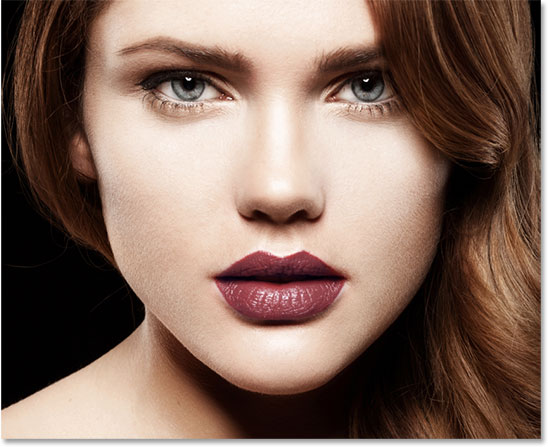
Here’s the image I’ll be working with (glamour eyes photo from Shutterstock):
Image 136438325 licensed and used by permission from Shutterstock by Photoshop Essentials.com.
Read More

Photo Into Pattern Colored Dots With Photoshop

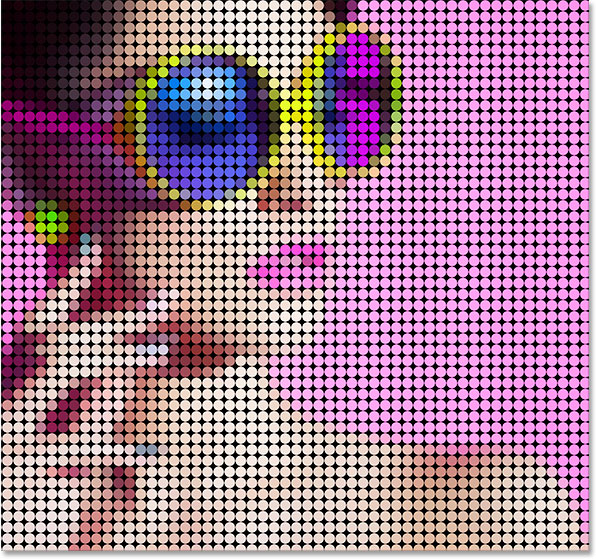
In this photo effects tutorial, we’ll learn how to turn a photo into a pattern of solid-colored dots! As we’ll see, all it takes to create the effect is one of Photoshop’s filters, a layer mask and a simple custom-made pattern, although we’ll add a few extra (but still very easy) steps at the end to enhance things even further. It can take a bit of trial and error to match up the size of the dots with your specific image, so to keep things as flexible as possible, we’ll be taking advantage of Smart Objects and Smart Filters.
I’ll be using Photoshop CS6 here but this tutorial is also fully compatible with Photoshop CC (Creative Cloud). If you’re using CS5 or earlier, you’ll want to follow along with the original version of the tutorial.
Download our tutorials as print-ready PDFs! Learning Photoshop has never been easier!
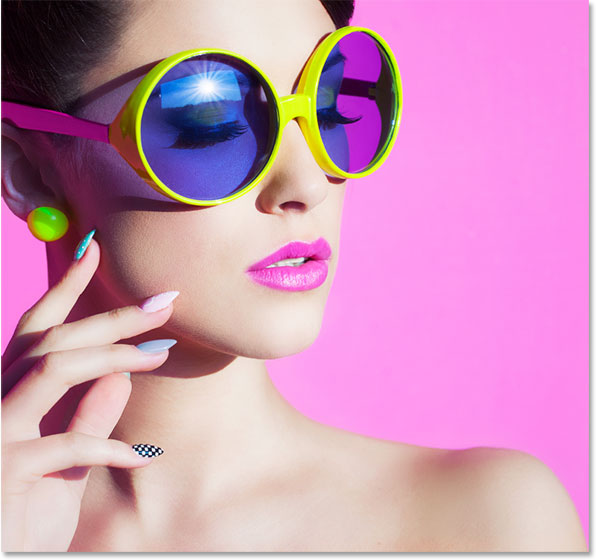
Here’s the image I’ll be working with (colorful sunglasses photo from Shutterstock):
Image 190735949 licensed and used by permission from Shutterstock by Photoshop Essentials.com.
The original image.
And here’s what the "colored dot pattern" effect will look like when we’re done:
Image 190735949 licensed and used by permission from Shutterstock by Photoshop Essentials.com.
Read More

Create Soft Edged Border Effect in Photoshop

There are very few simple steps need to follow if you want to have fade out kind of effect which makes the edges look soft using Adobe Photoshop. This is a very popular effect when you want to merge an image to another background so that the new image fits or adapts to it’s new environment resulting a WOW effect.
I have tried all my best to keep this post simple so that even a guy who has no experience of Photoshop can do the trick. What you need to do is to walk through the procedure step by step.
Tools Needed : :) You are right !   Adobe Photoshop
Skills Needed : :( You are wrong ! Nothing
Now, without twisting the story much, let’s get started with step 1.
STEP 1:
Choose 2 Images. For this demo I have picked following two images, first is a simple one with a beautiful quote and the sweet smiling kid.
sweetkid
Image 2
Read More

Metal Texture Desiging Tutorial

Metal Texture Final Result

Metal Texture Photoshop Tutorial 
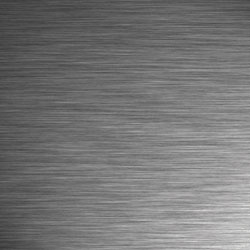
Use Photoshop to create a realistic metal texture. The texture can also be used for 3D modeling.

Read More